
Build a Real-Time Chat App with Django Channels & WebSockets: A Step-by-Step Tutorial
 By admin
Build a Real-Time Chat App with Django Channels & WebSockets: A Step-by-Step Tutorial
Welcome to Halogenius Ideas! Today, we’re diving into one of the most exciting features of modern web development: real-time communication. Have you ever wondered how chat applications like WhatsApp Web or Slack update messages instantly without you hitting refresh? The magic behind this is often WebSockets. In this comprehensive tutorial, we’ll build a fully functional, real-time chat application using Django Channels.
We’ll move beyond Django’s traditional request-response cycle and enter the world of asynchronous, bidirectional communication. Whether you’re a beginner looking to understand the concepts or an intermediate developer ready to implement, this guide will walk you through every file, every line of code, and every concept. By the end, you’ll have a working chat app and the knowledge to add real-time features to any Django project.
To watch the full tutorial on YouTube, click here.
Prerequisites: Basic knowledge of Django (models, views, URLs) and Python is assumed. Familiarity with HTML/CSS/JavaScript will help but is not strictly required as we’ll explain the necessary parts.
Project Overview and Setup
Our project, “django-chat-tutorial”, is a simple yet powerful chat application where users can join a common room and exchange messages in real-time. The user interface is clean and functional, built with Bootstrap for styling. Let’s start by setting up our development environment.
1.1 Creating the Project Foundation
First, ensure you have Python installed. Then, create a virtual environment and install the required packages. The key dependency here is channels, which extends Django to handle WebSockets and other asynchronous protocols.
# Create and activate a virtual environment (optional but recommended)
python -m venv venv
source venv/bin/activate  # On Windows use `venv\Scripts\activate`

# Install Django and Channels
pip install django channels
Now, create your Django project and the core chat application.
# Create the Django project
django-admin startproject core .
# Create the chat app
python manage.py startapp chat
1.2 Configuring Settings (core/settings.py)
The settings.py file requires crucial modifications to integrate Channels. We need to add our app, configure the ASGI application, and set up the channel layer. The channel layer is the backbone that allows multiple consumer instances to communicate with each other, enabling broadcast functionality (sending a message to everyone in the room).
We’ll use the in-memory channel layer for development simplicity. For production, you’d use Redis or another supported backend.
# core/settings.py
INSTALLED_APPS = [
    'django.contrib.admin',
    'django.contrib.auth',
    'django.contrib.contenttypes',
    'django.contrib.sessions',
    'django.contrib.messages',
    'django.contrib.staticfiles',
    # Third-party apps
    'channels',
    # Local apps
    'chat.apps.ChatConfig',  # Make sure to add this
]

# ... other settings ...

# Point Django to the ASGI application for running Channels
ASGI_APPLICATION = 'core.asgi.application'

# Configure the in-memory channel layer (for development)
CHANNEL_LAYERS = {
    'default': {
        'BACKEND': 'channels.layers.InMemoryChannelLayer',
    },
}

# Static files URL (for CSS/JS)
STATIC_URL = 'static/'
Key Concept: ASGI vs. WSGI
Traditional Django uses WSGI (Web Server Gateway Interface), which is synchronous and designed for HTTP requests. Channels uses ASGI (Asynchronous Server Gateway Interface), which is asynchronous and can handle WebSockets, HTTP2, and other protocols. Ourasgi.pyfile acts as the entry point for the ASGI server.
Designing the Data Model
Our chat app needs a simple model to store messages. We’ll create a Message model with fields for the message text, the sender’s username (for simplicity, we’re not linking to the User model), and a timestamp.
2.1 The Message Model (chat/models.py)
# chat/models.py
from django.db import models

class Message(models.Model):
    """Model to store chat messages."""
    username = models.CharField(max_length=255)
    room = models.CharField(max_length=255)
    content = models.TextField()
    timestamp = models.DateTimeField(auto_now_add=True)

    def __str__(self):
        """String representation of the Message model."""
        return f'{self.username} in {self.room}: {self.content[:20]}'

    class Meta:
        """Order messages by timestamp, oldest first."""
        ordering = ('timestamp',)
After defining the model, create and run the migrations.
python manage.py makemigrations
python manage.py migrate
The Heart of Real-Time: Django Channels
This is where we move from synchronous Django to asynchronous, real-time functionality. Channels introduces two main concepts: Consumers and Routing.
3.1 The WebSocket Consumer (chat/consumers.py)
A Consumer is analogous to a Django View for WebSockets. It handles WebSocket connections, disconnections, and receiving/sending messages. Our ChatConsumer class does several important things:
- Connects: Accepts a new WebSocket connection and adds the user to a specific “room” group based on the URL.
- Receives: Listens for messages sent from the user’s browser (via WebSocket).
- Broadcasts: Sends the received message to everyone in the same room group.
- Disconnects: Cleans up by removing the user from the group when they leave.
# chat/consumers.py
import json
from channels.generic.websocket import AsyncWebsocketConsumer
from channels.db import database_sync_to_async
from .models import Message

class ChatConsumer(AsyncWebsocketConsumer):
    """Handles WebSocket connections for the chat."""

    async def connect(self):
        """Called when the WebSocket is handshaking to establish a connection."""
        # Get the room name from the URL route
        self.room_name = self.scope['url_route']['kwargs']['room_name']
        # Create a group name from the room name
        self.room_group_name = f'chat_{self.room_name}'

        # Join the room group
        await self.channel_layer.group_add(
            self.room_group_name,
            self.channel_name
        )

        # Accept the WebSocket connection
        await self.accept()

    async def disconnect(self, close_code):
        """Called when the WebSocket closes for any reason."""
        # Leave the room group
        await self.channel_layer.group_discard(
            self.room_group_name,
            self.channel_name
        )

    async def receive(self, text_data):
        """Called when we receive a text frame from the WebSocket."""
        # Parse the JSON text_data into a dictionary
        text_data_json = json.loads(text_data)
        username = text_data_json['username']
        message = text_data_json['message']

        # Save the message to the database (using database_sync_to_async)
        await self.save_message(username, self.room_name, message)

        # Send the message to the entire room group
        await self.channel_layer.group_send(
            self.room_group_name,
            {
                'type': 'chat_message',
                'username': username,
                'message': message,
                'timestamp': str(self.get_current_timestamp()),
            }
        )

    async def chat_message(self, event):
        """Handler for 'chat_message' type events, sent by the group_send method."""
        # Send the actual message down to the client (browser)
        await self.send(text_data=json.dumps({
            'username': event['username'],
            'message': event['message'],
            'timestamp': event['timestamp'],
        }))

    @database_sync_to_async
    def save_message(self, username, room, message):
        """Saves a message to the database. Must be called asynchronously."""
        return Message.objects.create(username=username, room=room, content=message)

    def get_current_timestamp(self):
        """Helper to get current timestamp. In a real app, use timezone.now()."""
        from django.utils.timezone import now
        return now()
Understanding
group_sendandchat_message:
When a user sends a message,receive()callsgroup_send(). This sends an event of type'chat_message'to every consumer instance in theroom_group_name. Each consumer instance then automatically calls its ownchat_message()method (the type maps to the method name), which sends the message data down its individual WebSocket connection to the user’s browser. This is how broadcasting works!
3.2 Routing Configuration
Just like URLs route HTTP requests to views, we need to route WebSocket connections to consumers. This requires two routing files.
Project-Level ASGI Routing (core/asgi.py)
This file is the main entry point for the ASGI server (like Daphne). It routes WebSocket requests to our chat app’s routing.
# core/asgi.py
import os
from django.core.asgi import get_asgi_application
from channels.routing import ProtocolTypeRouter, URLRouter
from channels.auth import AuthMiddlewareStack
import chat.routing  # Import the app's WebSocket URL patterns

os.environ.setdefault('DJANGO_SETTINGS_MODULE', 'core.settings')

application = ProtocolTypeRouter({
    'http': get_asgi_application(),  # Handle traditional HTTP requests
    'websocket': AuthMiddlewareStack(  # Handle WebSocket connections
        URLRouter(
            chat.routing.websocket_urlpatterns  # Route WebSockets to our consumer
        )
    ),
})
App-Level WebSocket Routing (chat/routing.py)
This file defines the URL pattern for WebSocket connections, similar to urls.py. The room_name is captured from the URL and passed to the consumer.
# chat/routing.py
from django.urls import re_path
from . import consumers

websocket_urlpatterns = [
    re_path(r'ws/chat/(?P<room_name>\w+)/$', consumers.ChatConsumer.as_asgi()),
]
Building the User Interface
Now for the frontend! We need a page where users can enter a username, see the chat, and send messages. We’ll use a bit of JavaScript to manage the WebSocket connection.
4.1 The Main View and Template
First, a simple view to render our chat page. We’ll pass the room name from the URL to the template.
# chat/views.py
from django.shortcuts import render

def chat_room(request, room_name):
    """Renders the main chat room page."""
    return render(request, 'chat/room.html', {
        'room_name': room_name
    })
Next, configure the URL for this view in chat/urls.py and include it in the project’s core/urls.py.
# chat/urls.py
from django.urls import path
from . import views

urlpatterns = [
    path('<str:room_name>/', views.chat_room, name='chat_room'),
]
# core/urls.py (project-level)
from django.contrib import admin
from django.urls import path, include  # Make sure to import include

urlpatterns = [
    path('admin/', admin.site.urls),
    path('chat/', include('chat.urls')),  # Include chat app URLs
]
4.2 The Chat Room Template (templates/chat/room.html)
This template provides the structure. It uses Bootstrap for styling and contains the critical JavaScript WebSocket logic.
<!-- templates/chat/room.html -->
<!DOCTYPE html>
<html lang="en">
<head>
    <meta charset="UTF-8">
    <meta name="viewport" content="width=device-width, initial-scale=1.0">
    <title>Chat Room: {{ room_name }}</title>
    <!-- Bootstrap 5 CSS -->
    <link href="https://cdn.jsdelivr.net/npm/bootstrap@5.1.3/dist/css/bootstrap.min.css" rel="stylesheet">
    <style>
        #chat-log {
            height: 400px;
            overflow-y: scroll;
            border: 1px solid #ccc;
            padding: 10px;
            margin-bottom: 20px;
            background-color: #f8f9fa;
        }
        .message {
            margin-bottom: 10px;
            padding: 8px;
            border-radius: 5px;
            background-color: #fff;
            border-left: 4px solid #0d6efd;
        }
        .message .username {
            font-weight: bold;
            color: #0d6efd;
        }
        .message .timestamp {
            font-size: 0.8em;
            color: #6c757d;
        }
    </style>
</head>
<body>
    <div class="container mt-5">
        <h2 class="mb-4">Welcome to Chat Room: <code>{{ room_name }}</code></h2>

        <div id="chat-log" class="mb-3"></div>

        <div class="input-group mb-3">
            <input type="text" class="form-control" id="chat-message-input" placeholder="Type your message...">
            <button class="btn btn-primary" type="button" id="chat-message-submit">Send</button>
        </div>

        <div class="mb-3">
            <label for="username-input" class="form-label">Your Username</label>
            <input type="text" class="form-control" id="username-input" placeholder="Enter your username" value="Guest">
        </div>
    </div>

    <!-- Bootstrap JS Bundle -->
    <script src="https://cdn.jsdelivr.net/npm/bootstrap@5.1.3/dist/js/bootstrap.bundle.min.js"></script>

    <!-- Our WebSocket Logic -->
    <script>
        // Construct the WebSocket URL based on the current page's protocol and host
        const roomName = "{{ room_name }}";
        const chatSocket = new WebSocket(
            'ws://'
            + window.location.host
            + '/ws/chat/'
            + roomName
            + '/'
        );

        // Function to add a message to the chat log
        function addMessage(data) {
            const chatLog = document.querySelector('#chat-log');
            const messageElement = document.createElement('div');
            messageElement.classList.add('message');
            messageElement.innerHTML = `
                <div>
                    <span class="username">${data.username}</span>
                    <span class="timestamp"> [${data.timestamp}]</span>
                </div>
                <div class="content">${data.message}</div>
            `;
            chatLog.appendChild(messageElement);
            // Auto-scroll to the latest message
            chatLog.scrollTop = chatLog.scrollHeight;
        }

        // Event: When the WebSocket connection is opened
        chatSocket.onopen = function(e) {
            console.log('WebSocket connection established successfully.');
            addMessage({username: 'System', message: 'You have joined the chat!', timestamp: 'Just now'});
        };

        // Event: When a message is received from the server (via WebSocket)
        chatSocket.onmessage = function(e) {
            const data = JSON.parse(e.data);
            addMessage(data);
        };

        // Event: When the WebSocket connection is closed
        chatSocket.onclose = function(e) {
            console.error('Chat socket closed unexpectedly.');
            addMessage({username: 'System', message: 'Connection lost. Please refresh the page.', timestamp: ''});
        };

        // Sending a message: Hook up the button and input field
        document.querySelector('#chat-message-submit').onclick = function(e) {
            const messageInputDom = document.querySelector('#chat-message-input');
            const usernameInputDom = document.querySelector('#username-input');
            const message = messageInputDom.value;
            const username = usernameInputDom.value || 'Guest';

            if (message) {
                // Send the message as JSON over the WebSocket
                chatSocket.send(JSON.stringify({
                    'message': message,
                    'username': username
                }));
                messageInputDom.value = ''; // Clear the input
            }
        };

        // Also allow sending by pressing the 'Enter' key
        document.querySelector('#chat-message-input').focus();
        document.querySelector('#chat-message-input').onkeyup = function(e) {
            if (e.keyCode === 13) {  // Enter key
                document.querySelector('#chat-message-submit').click();
            }
        };
    </script>
</body>
</html>
JavaScript Breakdown: The script does four key things: 1) Establishes the WebSocket connection to our consumer URL. 2) Listens for incoming messages and appends them to the chat log. 3) Listens for the send button/Enter key, packages the message and username into JSON, and sends it via
chatSocket.send(). 4) Handles connection open/close events for user feedback.
Running and Testing Your Chat Application
The moment of truth! We can’t use Django’s default runserver command for Channels. We need an ASGI server. The easiest is Daphne.
# Install Daphne
pip install daphne

# Run the ASGI server
daphne core.asgi:application
Alternatively, Channels provides a custom runserver command. Ensure channels is in INSTALLED_APPS and run:
python manage.py runserver
Now, open your browser and navigate to http://127.0.0.1:8000/chat/general/ (or any room name you like). Open the same URL in a second browser window or incognito tab to simulate two users. Start chatting—you’ll see messages appear in both windows instantly!
Next Steps and Deployment Considerations
Congratulations! You’ve built a real-time chat app. Here’s how to improve it and prepare for production:
- User Authentication: Integrate Django’s
authsystem. Theself.scope['user']in the consumer gives you access to the authenticated user. - Production Channel Layer: Replace the
InMemoryChannelLayerwithRedisChannelLayerfor scalability across multiple server processes.# In settings.py for production CHANNEL_LAYERS = { "default": { "BACKEND": "channels_redis.core.RedisChannelLayer", "CONFIG": { "hosts": [("redis-server-name", 6379)], }, }, } - Deployment: Use Daphne behind a proxy like Nginx. You’ll also need to run a worker process (
python manage.py runworker) if using a channel layer backend like Redis. Services like Heroku, Railway, or Docker make deployment straightforward. - Enhancements: Add “user is typing…” indicators, read receipts, private messaging, file uploads, or message history fetch on page load.
Final Thought: You’ve just unlocked a new dimension of Django development. With Django Channels, you can build not just chat apps, but live notifications, collaborative editing tools, real-time dashboards, and more. The pattern you’ve learned today—consumers, groups, and WebSocket routing—is the foundation for all of them.
To watch the full tutorial on YouTube, click here.
We hope you enjoyed this deep dive into Django Channels and WebSockets. The full code for this tutorial is available in our GitHub repository. Feel free to clone it, experiment, and use it as a starting point for your own real-time projects. Happy coding from the Halogenius Ideas team!
Watch The Video
Watch on YouTubeHow did this article make you feel?
Share This Post

You Might Also Like

As a Python developer, you'll quickly discover that managing project dependencies is one…
 admin
admin 
A complete step-by-step SCSS tutorial. Learn how to use variables, nesting, mixins, and…
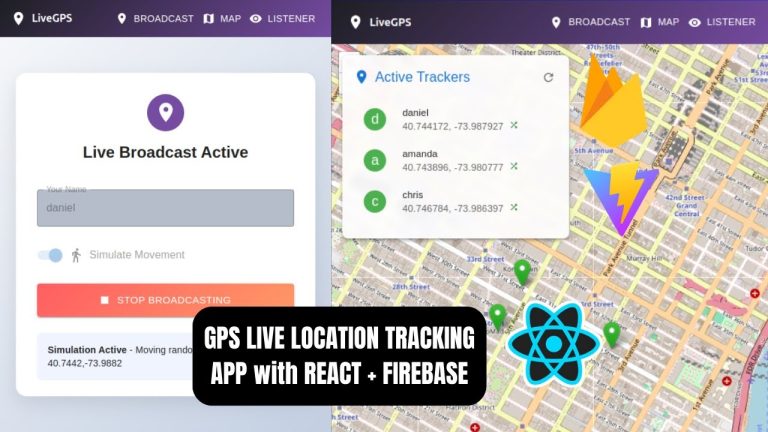
Learn how to build a real-time live location tracking web application from scratch using…

A complete, step-by-step CSS crash course for absolute beginners. Learn selectors, box…
Leave a Reply